
This is an example of how the Holidaymaker Booking Experts engine works embedded in your mobile app, or on your web surface.
This Booking Experts integration works on a simple accordion layout to lead users through the booking process; providing simple navigation and design led progression from the initial search to the successful booking completion
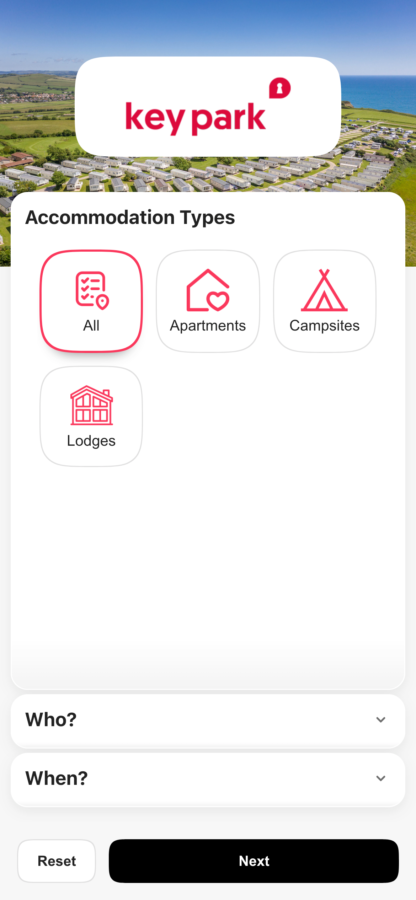
The user starts with a presentation of the accommodation types available for the business, such as ‘Lodges’, ‘Apartments’, ‘Camping’. These accommodation types are set by Booking experts when your organisation is setup with them.
The labels and icons for each accommodation type presented to the user can be customised in our design setup. Multiple selections can be made by the user and it defaults to ‘All accommodation types’ by default
This can be customised in our Check Design settings page.
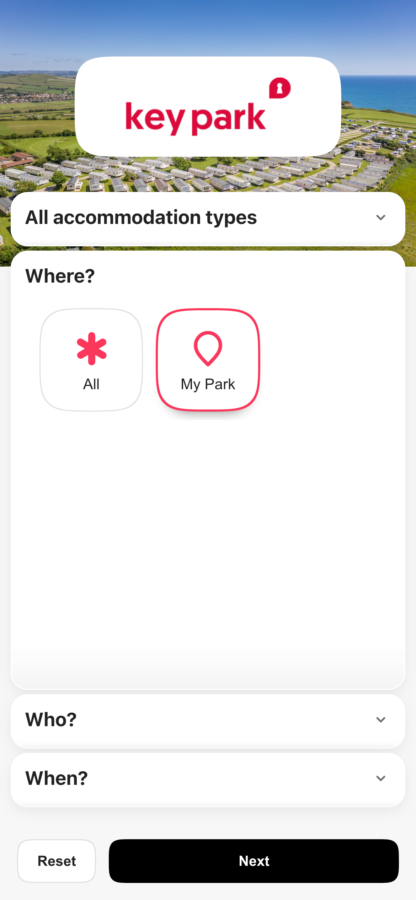
The user can the choose which parks they are interested in. This can include multiple selections and will default to ‘All parks’ if no selection is made.
This can be customised in our Check Design settings page.
Note: The ‘Where?’ is section is only visible to a user if more than one park is available for the user to choose from.
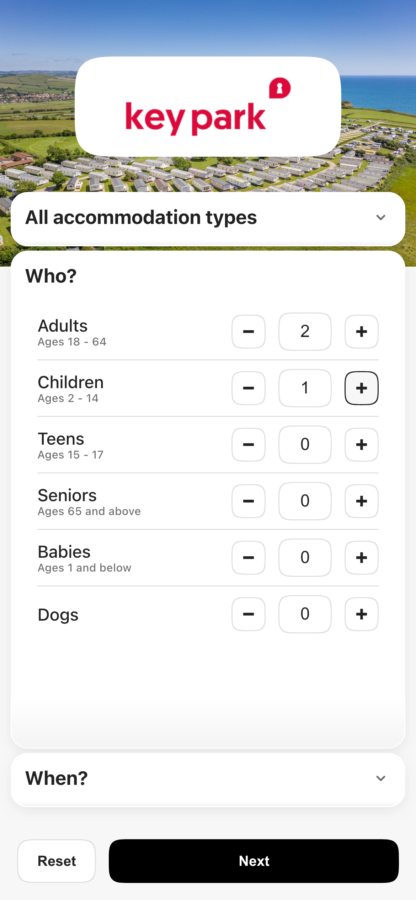
Selecting the guest group should be a familiar experience for the user with a standard guest selection method found in many only booking processes.
The selection of guest types shown to the user is denoted by your Booking Experts setup. Labels for each guest group can be changed in our settings.
In this example we have changed ‘Pets’ to ‘Dogs’ to make it clearer to users that this park only accepts dogs.
This can be customised in our Check Design settings page.
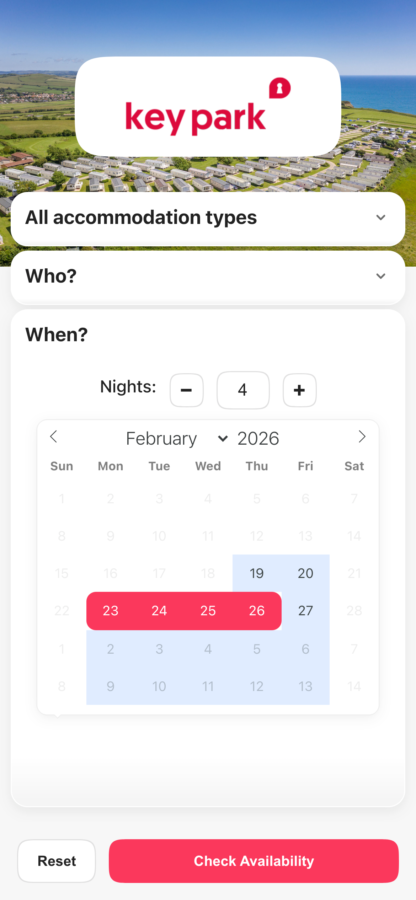
A familiar calendar style layout is presented to the user with a selection for the number of nights and a calendar that shows the available arrival days based upon the accommodation types chosen.
For example, a lodge may only allow arrival on a Monday or a Friday. Or an apartment may require a minimum of 2 nights. These can be customised in our rules setup.
This can have defined rules based on accommodation type which is easily configured in our Check Setup settings page.
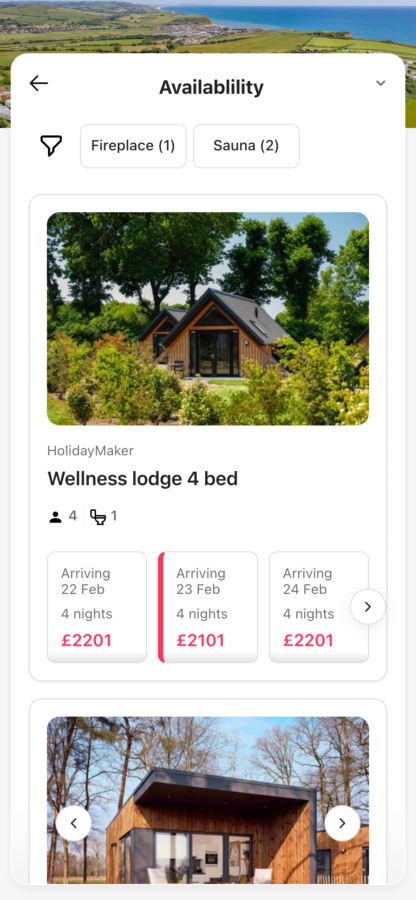
From the users chosen parameters a clear selection of availability will be shown.
Each accommodation available will show a selection of images (drawn from your setup on the Booking Experts portal), amenity icons and date options with associated pricing in a carousel format. Dates that match the users search exactly are highlighted for ease of use.
The user will also be able to filter via amenities set in our setup.
The user can progress to the next step by selecting a date and price combination.
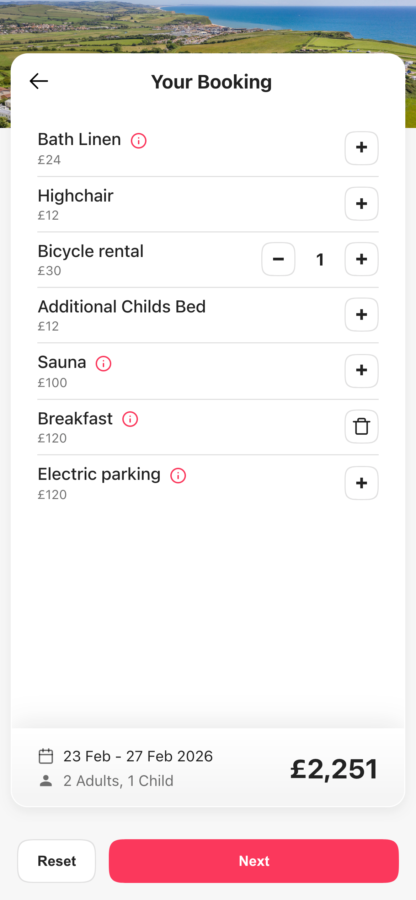
The next step will allow users to add additional extras to their booking which will update the price summary shown at the bottom of the page accordingly.
This page will only be shown to the user if there are extras available to purchase for their chosen accommodation type. Otherwise, they will proceed straight to the next step.
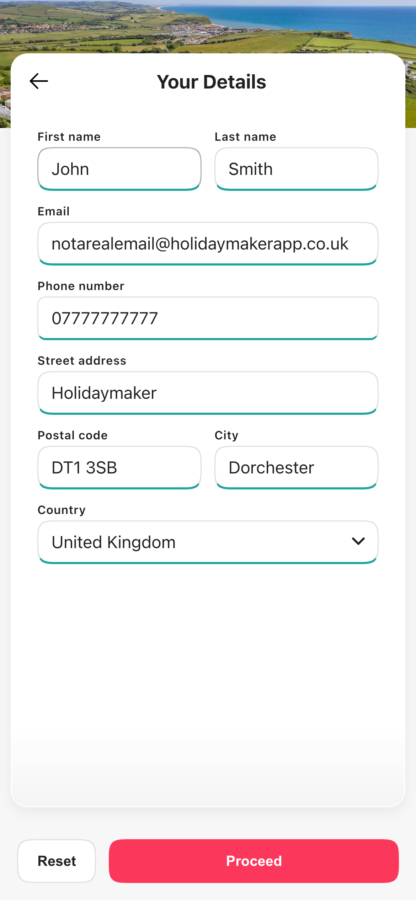
Familiar to most users; this simple form will ask users for some basic details required for their booking including their name, phone number, email address and postal address.
When a field has not been entered correctly a warning orange highlight will direct the user to the field requires attention. Otherwise they will show green as in this screenshot. The proceed button will only display once all fields are correct.
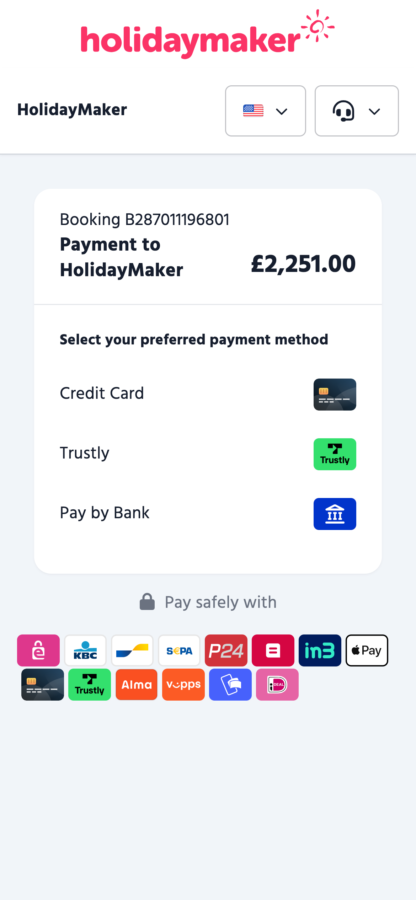
The final step of the process is to process the payment; this is undertaken via the Booking Experts payment portal (powered by Mollie).
The user can choose from the payment options made available in your Booking Experts setup
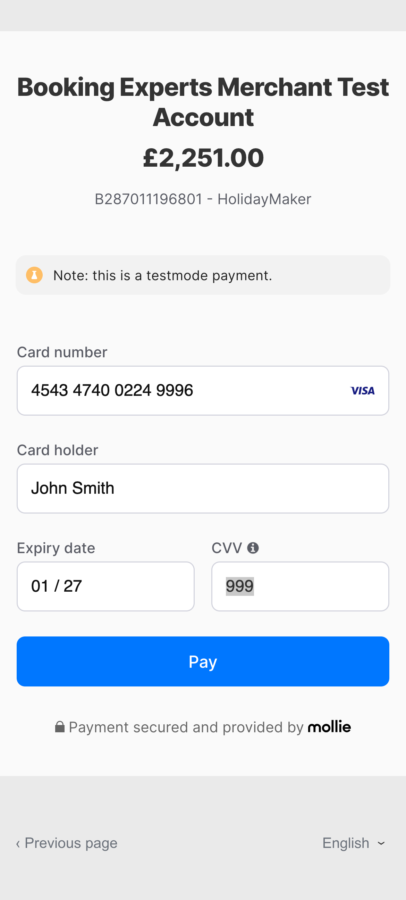
This screenshot shows an example of a credit card payment which is likely to be the most common method for most parks.
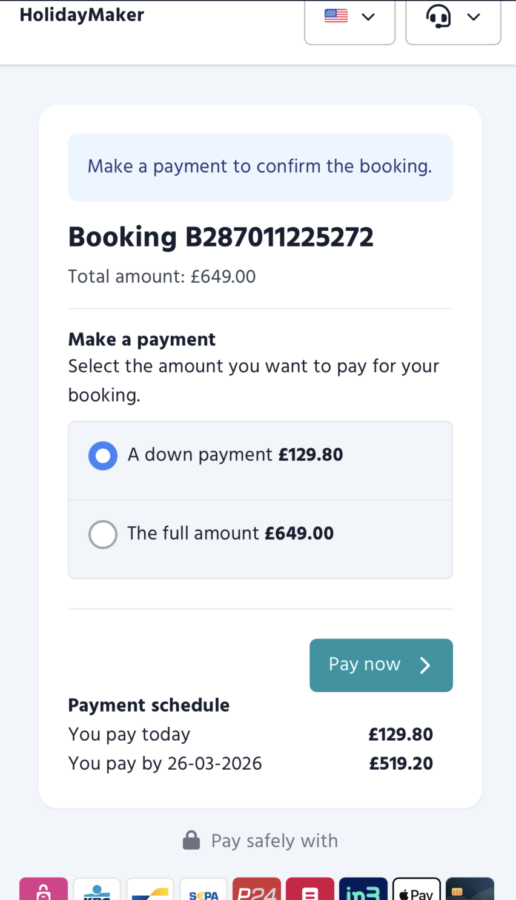
Example payment screen when part payment / deposit payment is available for this specific stay.
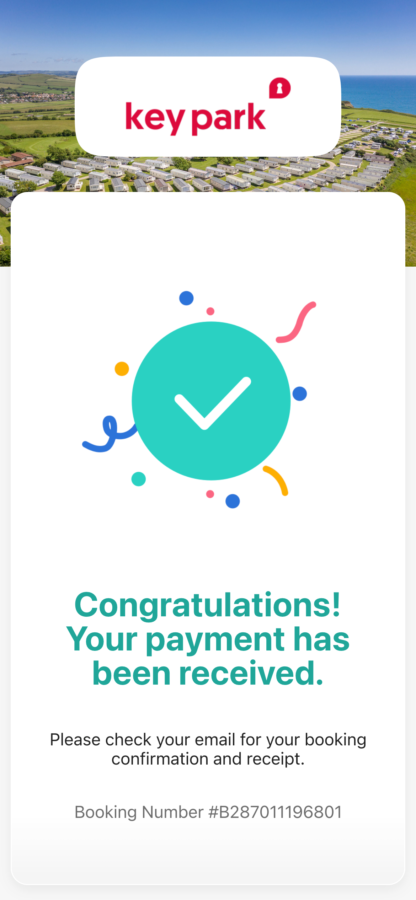
Once confirmed by Booking Experts payment portal, the user will be returned back to the confirmation page where they will be presented with their Booking number.
If setup in Booking Experts, the user will now also receive their booking confirmation email.
If this engine is embedded within your holidaymaker app surface there are various additional features available.
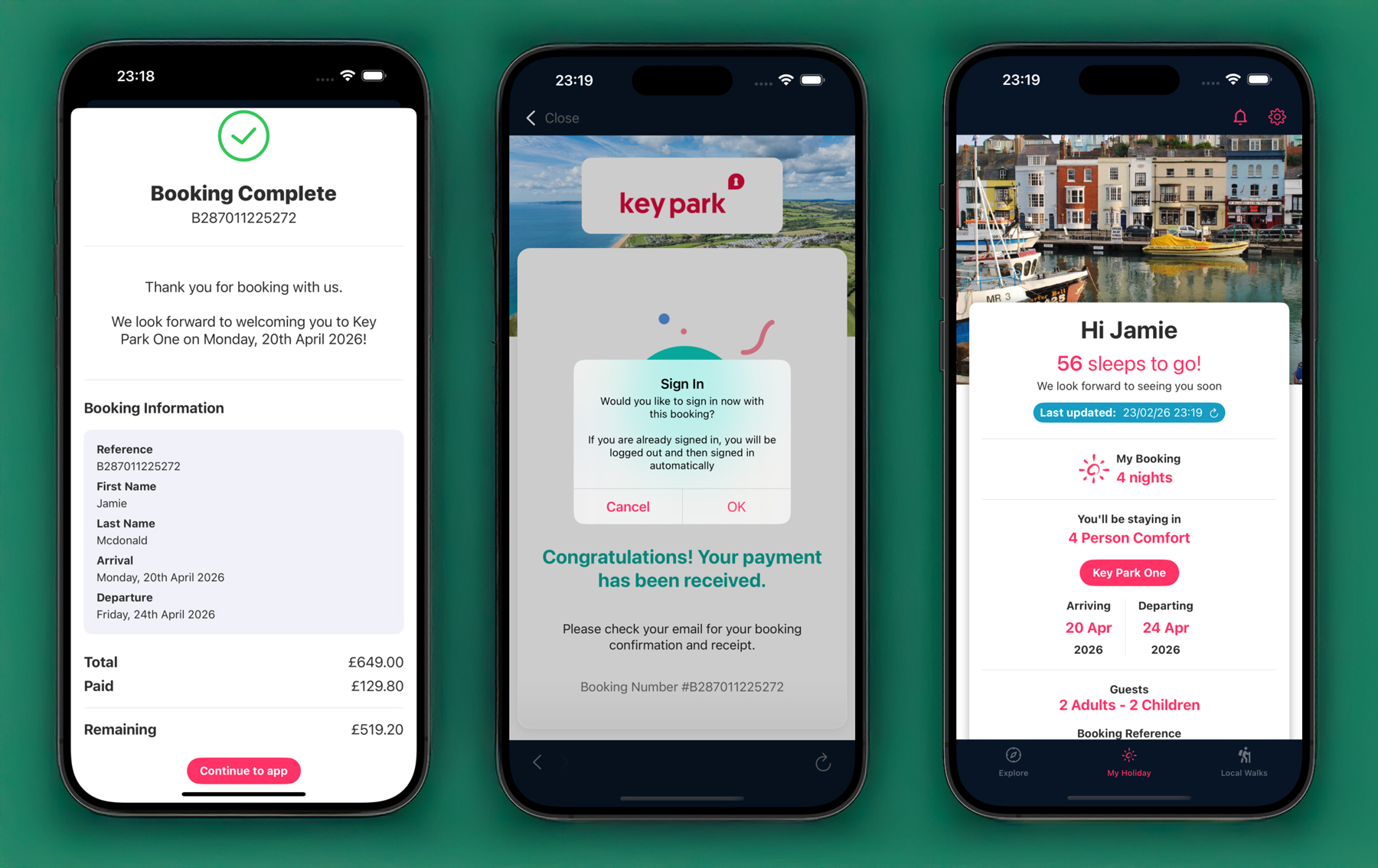
Example app booking confirmation page, then dialog asking to login with that booking, and then the booking logged into the app.