
Seeview display’s has a test setup which will help check to see if a internet enabled display or TV is able to run the seeview system.
This is accessed from https://seeview.tv/test
This will show you your device browser’s user-agent string which can help to identify a device when required. This also does some tests to see if JavaScript and CSS technologies used by seeview are supported by your device
This will show you what your rendered width and height is in pixels, and if there is any scaling involved. EG some web browsers may tell the rendering engine that it is smaller than it actually is and have a screen density setting. For example the screenshot below reports to be 1080p – however is much larger than that. This means you could use higher quality images if required
There is a small slider which uses the same JaveScript libraries as the main seeview system. If this autoplays and renders the slides correctly then seeview should also work correctly on this device.
In the bottom corners are some vertical and horizontal guides so you know if your display is cutting off any of the rendered image. From our testing on various displays, and devices plugged into them, sometimes a browser may cut of a small percentage around the edge of the screen. These guides can give you an idea of how much safe area to leave around your uploaded images to ensure text and images are not cut off
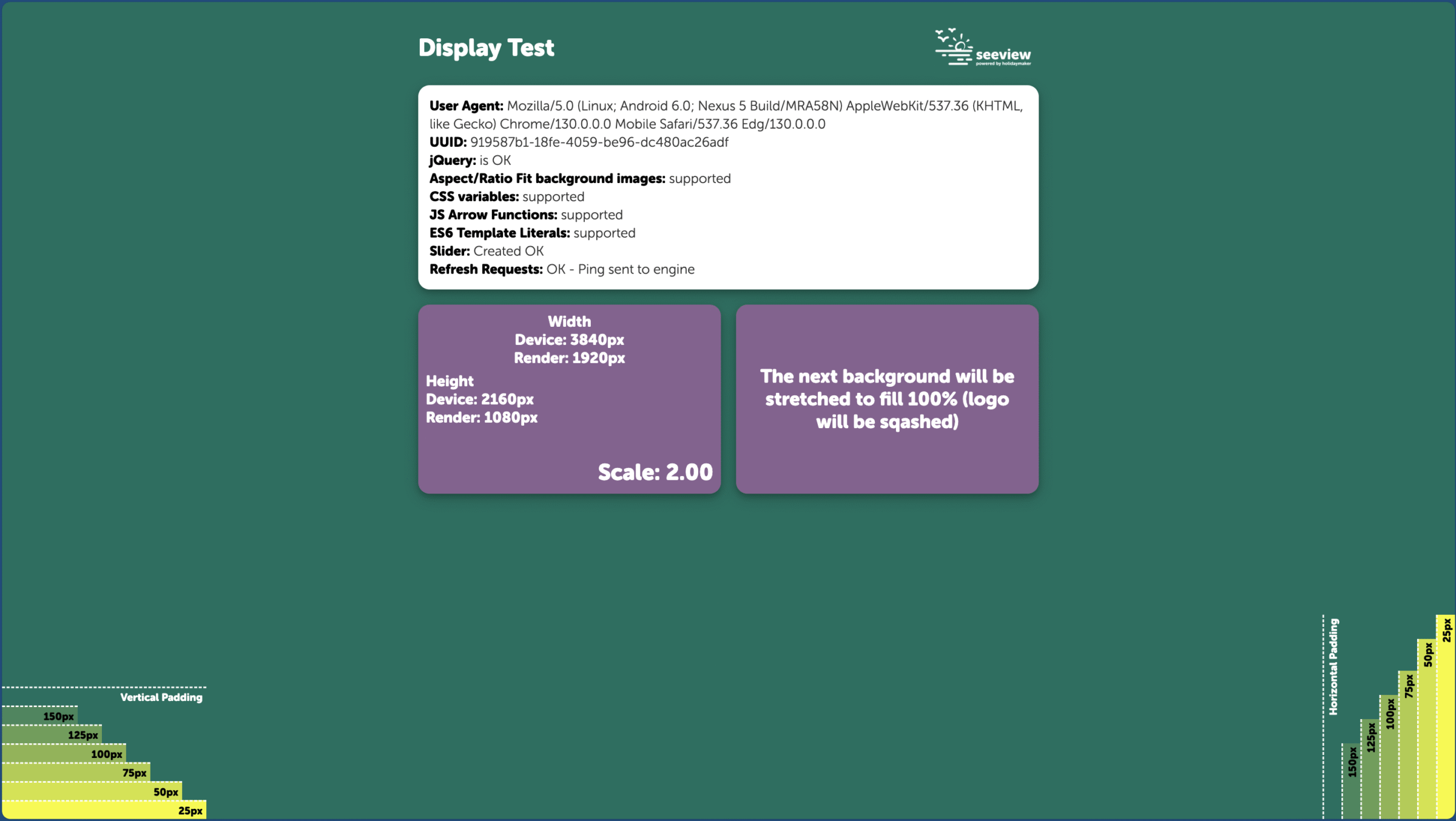
Test Page rendering fully
If the above test page runs with no issues then you can be confident that your screen will run seeview.
The browser requirements for seeview are :
Other technical considerations considerations to make:
Many consumer televisions would have built in power saving settings. In rare cases these cannot be changed. Although the web browser is running and the javascript is triggering actions in the background, a devices operating system or browser may at one point decide that the device is idle and put it into standby.
Ways to prevent this would be to use more commercial displays such a digital signage designed to be on 24/7. You can also see if a device has a ‘store mode’ which could prevent power settings, or if it is a. more advance OS such as Google TV/Android TV you may be able to set it to never go on standby anyway.
Seeview supports both landscape and portrait orientations, and also has no restrictions on resolution. If a display has a particularly small resolution and our event, and home sales dynamic slides do not render well, we can make bespoke design changes on a case by case basis, without effecting the main seeview system.
Seeview renders from the web, so requires a constant and stable internet connection. We try to optimise traffic when possible to ensure smooth rendering, and can also optimise image sizes on a case by case basis to ensure your screen shows the correct sizes to save internet traffic.
As with all static technology such as this, we highly recommend that a wired network connect is used when possible to ensure stability, and easy trouble shooting. Wireless connections how do not cause an issue if there is a stable and constant signal