
An overview of how to setup Call-to-Actions in your app to connect to your local WiFi
There are three areas where you can add a call-to-action, to allow a user or their holiday party to easily connect to a WIFI connection.
Click here for more information on setting up welcome pack items.
Click here (coming soon!) for more information on Home Alerts and Home Banners.
Home alerts and home banners have a similar setup – the main difference being that a banner simply requires a title and image, whereas an alert box has more options and copy available.
Once you have setup a home alert or banner it WILL NOT automatically appear in the app. That alert or banner is now ready to assign when you wish, to either your single park, or group site records. This means you can pick and choose when it appears in the app without having to repeatedly set it up.
Set up the design of your alert box or banner:
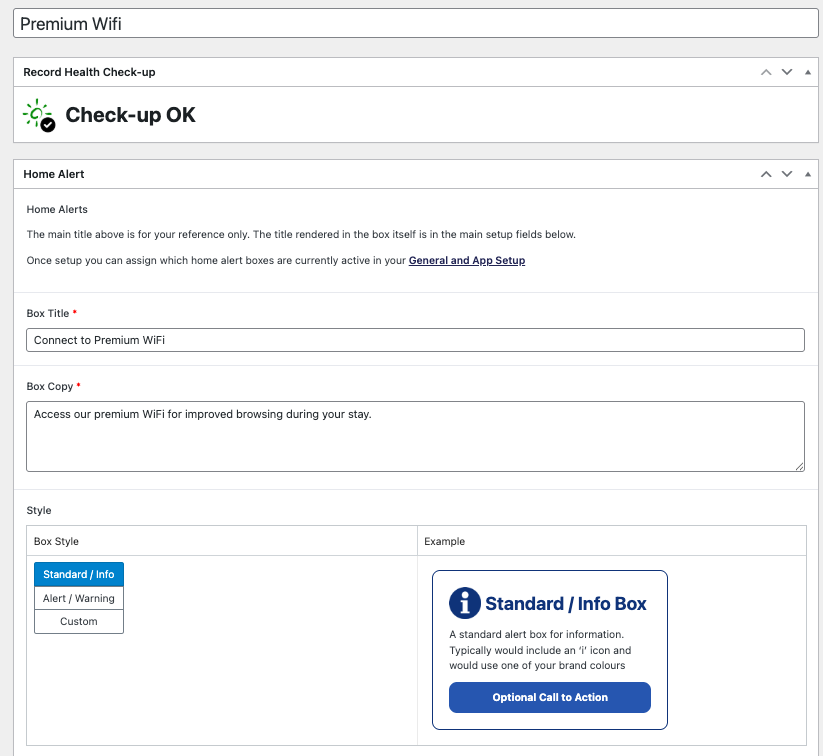
Example home alert rich content setup
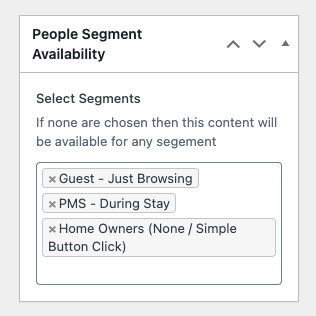
If you have the ‘People Module’ enabled on your holidaymaker install, you can choose to segment this to different sets of guests like you can any other content. That means it would only show for users who fit those segments.
Holiday park clients who do not have the premium people module, can still do some basic segmentation using the ‘Availability’ field which will show before the box title. This lets you filter to holiday home owners, guests signed in, or guests signed in who are also during their stay.
Both of these methods means you can restrict the WiFi connection call-to-action from being available based on the users stay/segment.
For a home alert, you need to tick on that this alert has a Call-to-Action. Home banners always need an intent so will show anyway.
The Button Action / Banner action which you need to use is Device – WIFI Connect
For home alerts you will also need to add a Button Label eg Connect Now
Choosing the WIFI Connect action will reveal 3-4 new fields to then enter your wifi details:
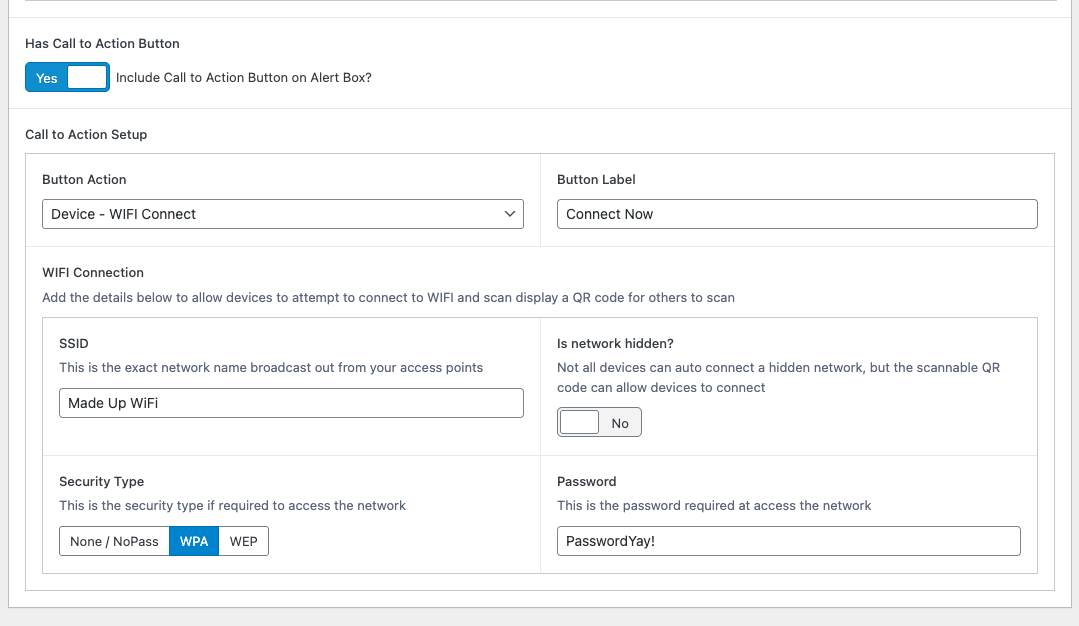
Example connection details added to a home alert
Once your home alert or banner is setup, it will not show in the app until you assign it to the home screen. This can be done in the Home Alerts / Banners Tab found:
Welcome pack and place records can include an optional alert box to show in the details page in the app. This is setup in a very similar way to home alerts but with a few slight differences:
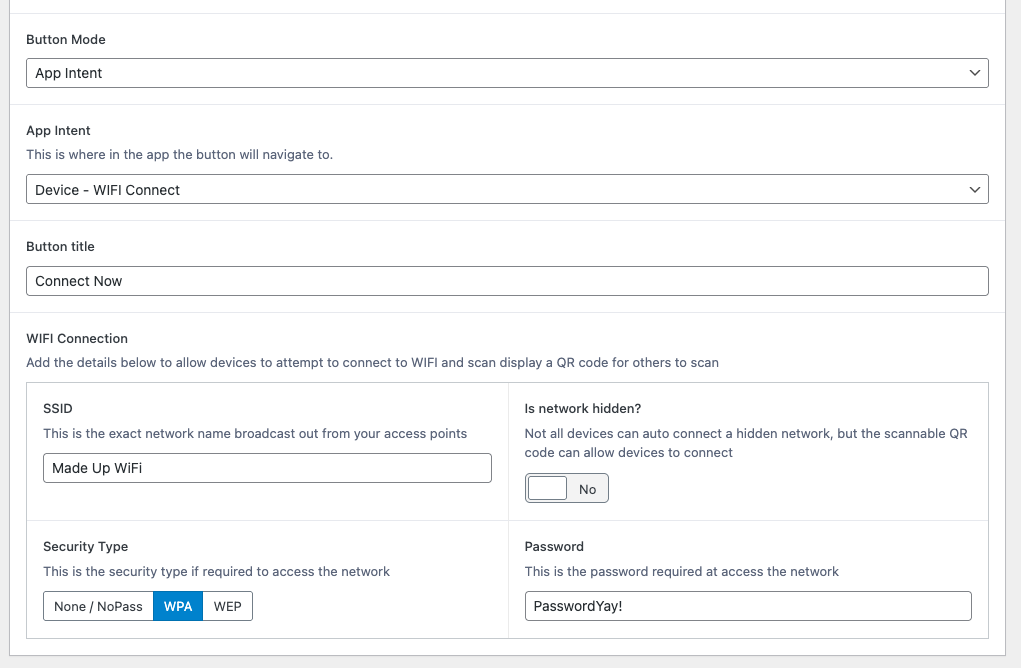
Example welcome pack alert box app intent setup for WiFi connection