
This will take you step by step through manually installing the holidaymaker TV manager app onto your Android TVs
The Holidaymaker TV Manager app can be installed by yourself, or your IT team, to then be able to manage your TV App’s installation, updates, and quick access to streaming apps settings to clear their data. Information on how to use the TV Manager app can be found here.
There are two options to manually installing the app for the first time:
The first of these is generally the preferred method and can be done by anyone who is comfortable using consumer technology. This is often performed by a manager, or maintenance team. The second method may be preferred by IT teams and is much quicker, but requires more computer knowledge and a suitable network setup.
This method it a multi-step process where you first acquire apps on the TV to be able to download the app from our servers and then install it. After it is installed you can then clean up any preparation made.
If the TV already includes a web browser, file manager, or similar to be able to download and install apps, then you simply need to perform steps 13-15 of the following guide.
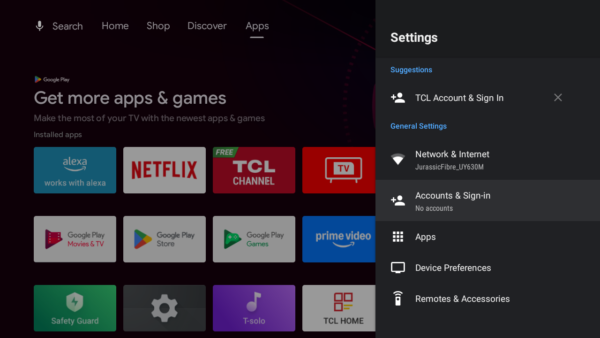
There are several options to download and ‘side-load’ an Android app onto an android TV. To get these you need to login to a Google account, and use the Google Play Store to install your chosen tools. There are several options e.g. using a web browser to download, and a file manager to install, but we recommend an app called ‘Downloader’, if it is available for your device, as this can download and install the app at the same time.
1. Go to your device settings
2. Choose Accounts & Sign-In or similar and choose to add an account if one is not logged in
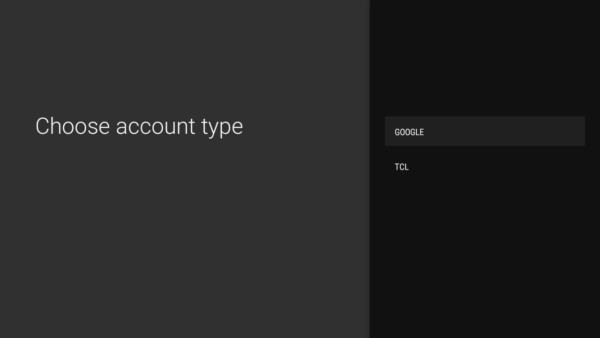
3. If you get given an option of different accounts choose ‘Google’
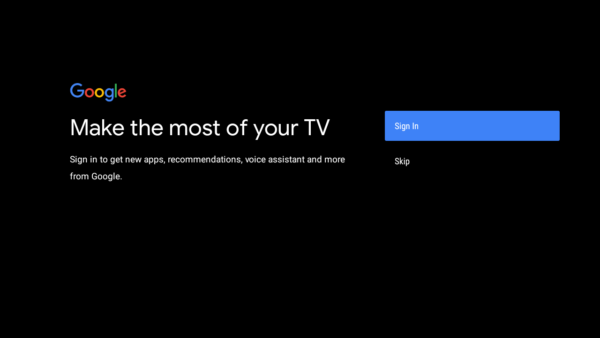
4. Select ‘Sign In’ – You will need a Google account – this does not have to be a GMail account, but simply a google registered account.
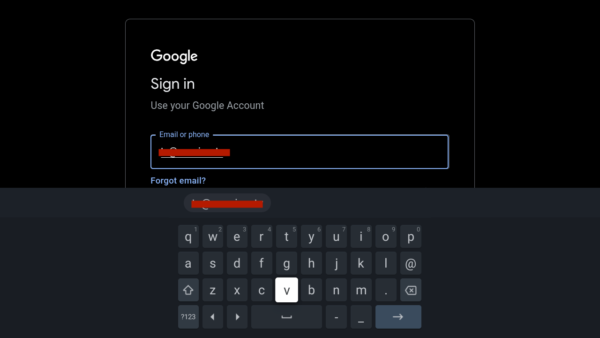
5. Enter your Google account email address
6. Enter your Google account password
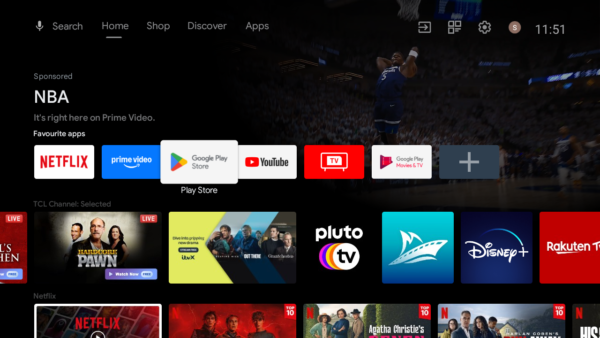
7. Find the Google Play Store app
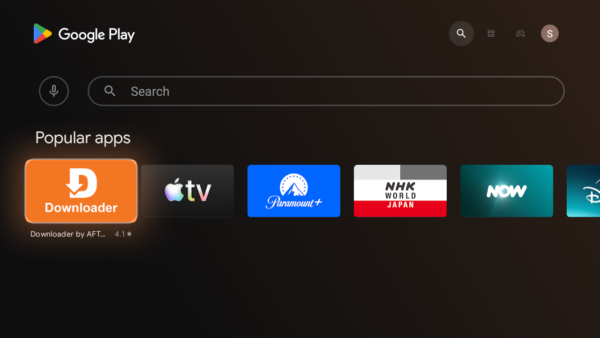
8. Search for ‘Download’, find, and install the ‘Downloader’ app which is normally an orange banner with a white ‘D’ logo. This is often found as one of the most popular apps when you go to search anyway.
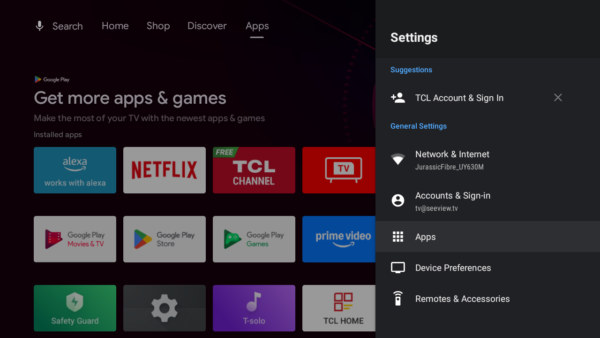
You need to allow the Downloader app to install ‘Unknown source’ apps, which is any app not installed via the Google Play Store. It is worth doing this before you open the app as it makes the process more streamlined.
9. On the Android TV settings find ‘Apps’
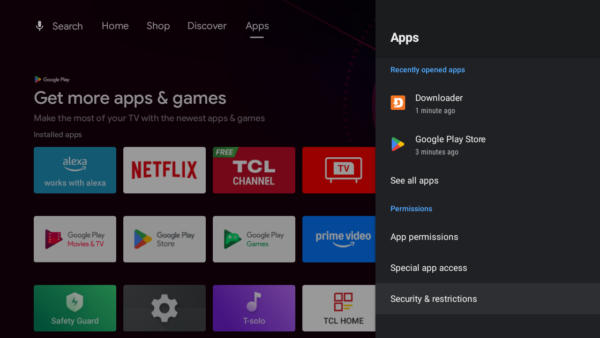
10. Do not go to the apps list, but instead find the ‘Security & Restrictions’ option often under a subheading of ‘Permissions’
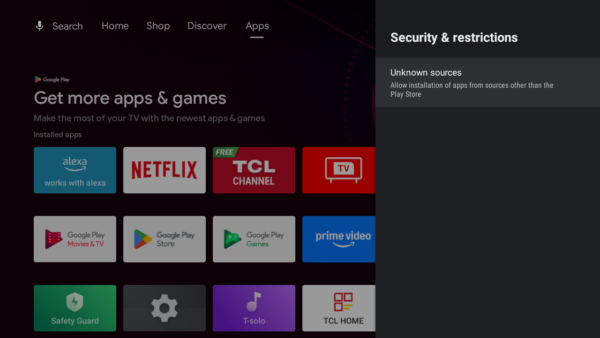
11. Select ‘Unknown Sources’
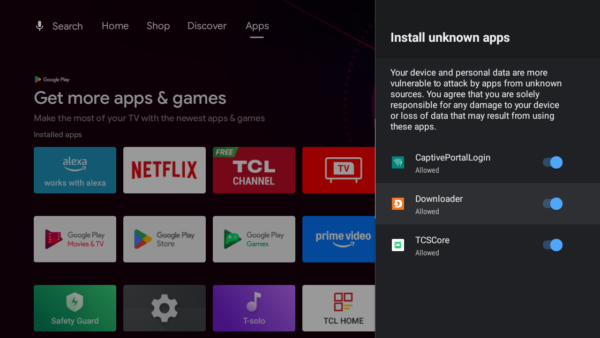
12. Tick on the ‘Downloader’ App
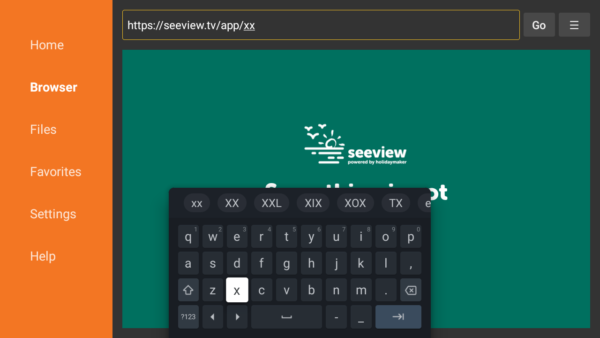
13. Open the downloader app and use your Holidaymaker TV Manager url provided by holidaymaker to download and prompt the install

14. Once downloaded it will prompt you to install – once installed just click on ‘Done’
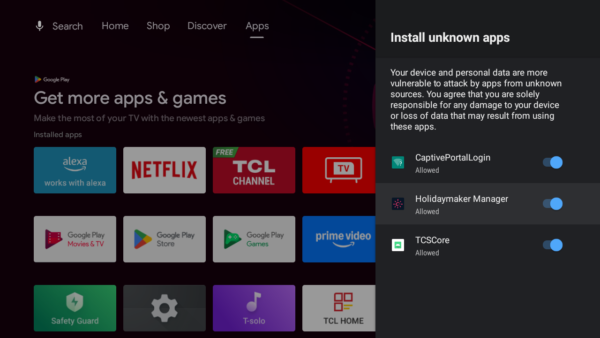
15. Repeat steps 9-12 but instead allow Holidaymaker Manager to install unknown sources
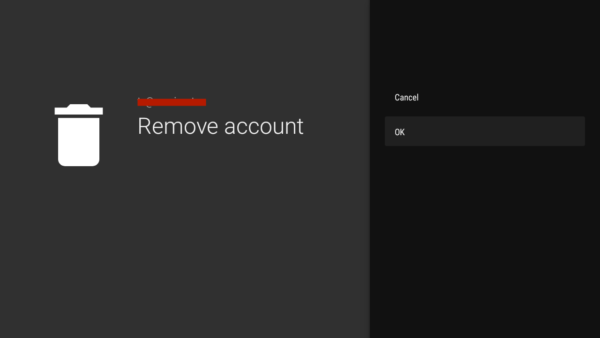
Now you have the Holidaymaker TV Manager installed you no longer need to be logged into the TV with your Google account and can uninstall the Downloader app.
Note: Even if you do not uninstall the downloader app, once you are logged out of your google account, the app will no longer work as it is ‘licensed’ to you
16. In settings navigate to Accounts and Sign-In again and remove your google account
17. Uninstall the Downloader app. You can do this from the main apps grid and long press on the app and choose uninstall. Alternatively you can find it under settings -> apps -> Downloader and choose uninstall.
This method is suitable for those with more advanced computers knowledge, and access is available for a laptop to be on the same network as the TVs.